
You can run a vision model locally with Ollama and talk to it from .NET through Microsoft.Extensions.AI.
Attach the image bytes as DataContent on a ChatMessage, then call GetResponseAsync<T> to get a strongly typed C# object back instead of raw JSON.
Most of the accuracy work happens in the system prompt.
As AI moves into production, legacy identity becomes a bottleneck. Anonymous execution and static credentials don't scale. Join Teleport's free Feb 19 webinar to learn how to move faster with AI, without compromising security or reliability.
NEW: Use Augment Code's Context Engine with your favorite models! Connect via MCP to see how you can get faster, higher-quality results using fewer tokens.
I wanted to see how well a vision model (LLM) could parse grocery receipts into structured data.
And I don't just mean describe what it sees. I want to be able to actually extract line items, quantities, and prices into clean JSON. Running entirely on my machine with Ollama and a llama3.2-vision model.
It started as a quick experiment. I ended up spending a whole evening on it.
In this week's issue, I'll walk you through:
- Setting up Ollama with a vision model in .NET
- Sending images to the model and getting structured output
- Iterating on the system prompt to improve accuracy
- Deserializing LLM responses into strongly typed C# objects
- Testing whether the results are actually consistent
Let's dive in.
Setting Up Ollama With Microsoft.Extensions.AI
Ollama lets you run large language models locally. You pull a model the same way you'd pull a Docker image, and it runs on your hardware.
ollama pull llama3.2-vision:latest

# Then run the model locally
ollama run llama3.2-vision:latest
On the .NET side, Microsoft.Extensions.AI
provides a unified IChatClient interface for talking to any LLM provider.
Combined with OllamaSharp, the setup is minimal:
var builder = Host.CreateApplicationBuilder();

builder.Services.AddChatClient(
    new OllamaApiClient(
        new Uri("http://localhost:11434"),
        "llama3.2-vision:latest"));

var app = builder.Build();

var chatClient = app.Services.GetRequiredService<IChatClient>();
That gives us an IChatClient backed by a local vision model.
You don't have to manage any API keys or cloud dependencies.
The nice thing about IChatClient is that it's provider-agnostic.
If you want to swap Ollama for OpenAI or Azure later, your application code doesn't change.
Sending an Image to the Model
The simplest thing to try: send a receipt image and ask what's in it.
var message = new ChatMessage(
    ChatRole.User, "What's in this image?");

message.Contents.Add(
    new DataContent(
        File.ReadAllBytes("receipts/receipt_1.png"),
        "image/png"));

var response = await chatClient.GetResponseAsync([message]);

Console.WriteLine(response.Text);
You read the image bytes, wrap them in a DataContent with the appropriate MIME type, and attach it to a ChatMessage.
Here's the receipt I used for testing.
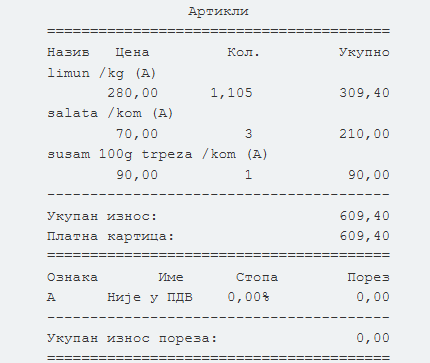
And here's the raw text response from the model:
This image appears to be a receipt or invoice in a foreign language, likely Russian or another
Slavic language. The document is in black and white and features a large QR code at the bottom.
The text is in a blocky, old-style font and includes several columns of numbers and words.
The top of the page has a header with some information in a foreign language, followed by a
series of columns with various details such as date, time, and product information. The document
also includes some calculations and a total at the bottom. The overall design and layout suggest
that this is a receipt or invoice from a store or restaurant, but the specific details and
language make it difficult to understand without further context or translation.
The model correctly identified it as a receipt and listed the items on it. That's impressive for a first try with zero fine-tuning. But it's not very useful if we want to extract structured data.
The good thing is we can refine our prompt and ask for a more specific output format.
Asking for JSON Output
A text description isn't very useful programmatically. So I asked for structured JSON instead:
var message = new ChatMessage(ChatRole.User,
    @"""
    Extract all line items from this receipt.
    Respond in JSON format with this structure:
    {
        "items": [
            {
                "name": "item name",
                "quantity": 1.500,
                "unitPrice": 0.00,
                "totalPrice": 0.00
            }
        ],
        "subtotal": 0.00
    }
    """);
message.Contents.Add(
    new DataContent(
        File.ReadAllBytes("receipts/receipt_1.png"),
        "image/png"));

var response = await chatClient.GetResponseAsync([message]);

Console.WriteLine(response.Text);
Here's the new response from the model:
Here is the receipt in JSON format with all line items extracted:

{
    "items": [
        {
            "name": "limun /kg (A)",
            "quantity": 280.00,
            "unitPrice": 1.105,
            "totalPrice": 309.40
        },
        {
            "name": "salata /kom (A)",
            "quantity": 70.00,
            "unitPrice": 3.00,
            "totalPrice": 210.00
        },
        {
            "name": "susam 100g trpeza /kom (A)",
            "quantity": 90.00,
            "unitPrice": 1.00,
            "totalPrice": 90.00
        }
    ],
    "subtotal": 609.40
}
This worked surprisingly well on the first try. The model returned a JSON blob with item names, quantities, and prices. Some quantities were slightly off but the structure was correct.
For zero fine-tuning, I was impressed.
Iterating on the System Prompt
Here's what I found: when the model misreads a digit or rounds a number, you don't fix a bug in C#. You refine the system prompt.
What is a system prompt?
It's the initial instruction you give the model to set the context for the conversation.
Notice the ChatRole.System in the code below.
Conversely, we use ChatRole.User for the message where we ask the question.
After a few rounds of this, my system prompt ended up reading like a specification document:
var systemMessage = new ChatMessage(ChatRole.System,
    @"""
    You are a receipt parsing assistant. Extract all line items from the receipt image.
    For each line item, extract the name, quantity, unit price, and total price.
    Quantity can be a decimal number (e.g. weight in kg like 0.550 or 1.105).
    Extract the subtotal which is the final total amount shown on the receipt.
    IMPORTANT: Read every digit exactly as printed on the receipt.
    Pay very close attention to each decimal digit - do NOT round or approximate.
    For example, if the receipt shows 1.105, report exactly 1.105, not 1.1 or 1.2.
    Verify that quantity * unitPrice = totalPrice for each line item.
    Don't invent items that aren't on the receipt.

    DECIMAL FORMAT: Receipts may use different number formats depending on locale.
    - Some use period as decimal separator: 7,499.00
    - Some use comma as decimal separator: 7.499,00
    First, detect which format the receipt uses by examining the numbers on it.
    Then, always output numbers in the JSON using a period as the decimal separator.
    For example: 7499.00, not 7.499,00 or 7,499.00.
    """);
Every instruction in that prompt exists because the model got something wrong.
"Read every digit exactly as printed": it was rounding 1.105 to 1.1.
"Don't invent items": it hallucinated a line item that wasn't on the receipt.
The entire decimal format section: my receipts use commas as decimal separators (European locale), and the model kept confusing thousands separators with decimal points.
Each prompt iteration is like a debugging session with words instead of code. It's not the most fun part, but it's necessary to get accurate results.
And to think we used to write code to tell computers what to do. Now we write prompts to tell models how to think. I digress...
Strongly Typed Responses
This is where Microsoft.Extensions.AI gets interesting.
Instead of parsing raw JSON strings yourself, you can call GetResponseAsync<T> and get back a strongly typed object:
var response = await chatClient.GetResponseAsync<Receipt>(
    [systemMessage, message],
    new ChatOptions { Temperature = 0 });

if (response.Result is { } receipt)
{
    Console.WriteLine(
        $"\nExtracted {receipt.Items.Count} line items:");

    foreach (var item in receipt.Items)
    {
        Console.WriteLine(
            $"  {item.Name} - " +
            $"Qty: {item.Quantity} x {item.UnitPrice:C}" +
            $" = {item.TotalPrice:C}");
    }

    Console.WriteLine($"  Subtotal: {receipt.Subtotal:C}");
}
The Receipt and LineItem classes are plain C# objects:
public class Receipt
{
    public List<LineItem> Items { get; set; } = [];
    public decimal Subtotal { get; set; }
}

public class LineItem
{
    public string Name { get; set; } = string.Empty;
    public decimal Quantity { get; set; }
    public decimal UnitPrice { get; set; }
    public decimal TotalPrice { get; set; }
}
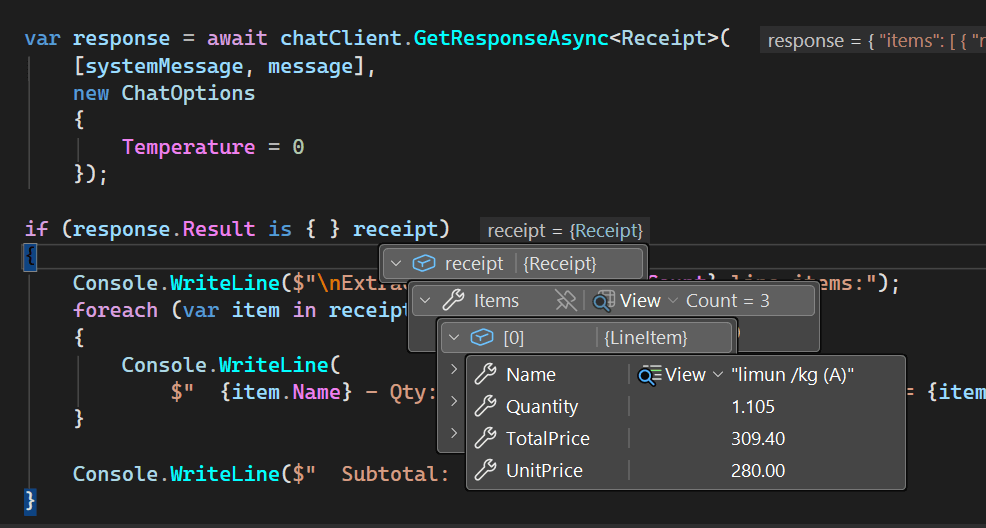
The library generates the JSON schema, sends it to the model, and deserializes the response.
You get back a Receipt object directly.
I also set Temperature = 0 to make the output as deterministic as possible.
For data extraction, you want accuracy.
This isn't foolproof, but it helps.
Here's the object we get back from the model in Visual Studio:
Testing Consistency
One thing I wanted to verify: if I send the same receipt with the same prompt five times, do I get the same result?
const int runs = 5;
Console.WriteLine($"\n--- Consistency test ({runs} runs) ---");

var results = new List<Receipt>();
for (int i = 0; i < runs; i++)
{
    Console.WriteLine($"\nRun {i + 1}...");
    var testResponse = await chatClient.GetResponseAsync<Receipt>(
        [systemMessage, message],
        new ChatOptions { Temperature = 0 });

    if (testResponse.Result is { } r)
    {
        results.Add(r);
        Console.WriteLine(
            $"  Items: {r.Items.Count}, " +
            $"Subtotal: {r.Subtotal:C}");

        foreach (var item in r.Items)
        {
            Console.WriteLine(
                $"    {item.Name} - " +
                $"Qty: {item.Quantity} x {item.UnitPrice:C}" +
                $" = {item.TotalPrice:C}");
        }
    }
}
Then I compare every run against the baseline:
var baseline = results[0];
for (int i = 1; i < results.Count; i++)
{
    bool match = baseline.Subtotal == results[i].Subtotal
        && baseline.Items.Count == results[i].Items.Count
        && baseline.Items.Zip(results[i].Items).All(pair =>
            pair.First.Name == pair.Second.Name
            && pair.First.Quantity == pair.Second.Quantity
            && pair.First.UnitPrice == pair.Second.UnitPrice
            && pair.First.TotalPrice == pair.Second.TotalPrice);

    Console.WriteLine(
        $"  Run 1 vs Run {i + 1}: " +
        $"{(match ? "MATCH" : "DIFFERENT")}");
}
Temperature 0 helps, but vision models aren't perfectly deterministic. Most runs matched. Some didn't. The differences were usually small - a misread digit, a slightly different item name.
This is worth keeping in mind when working with LLMs. They're probabilistic systems. Even with temperature 0, the same input can produce slightly different output. If you need guaranteed accuracy, you'll want validation layers on top of this.
Where I Want to Take This
The receipt scanner is a starting point. Once you have structured data from receipt images, you can build on top of it.
I've been thinking about extending this into a personal finance tracker. Scan receipts, store the data, and use the same LLM to categorize purchases. Groceries, household, electronics - let the model figure it out.
From there, you could generate weekly and monthly spending summaries. How much did I spend on groceries this month? How does that compare to last month?
You could also do multi-receipt aggregation for business trips. Scan a stack of receipts and generate an expense report.
Or price tracking over time - detect when items at your usual store go up in price.
We could defintiely build semantic search on top of this too. Search through your past receipts for specific items or price ranges. This works by embedding the structured data and using vector search to find relevant entries.
The vision model handles the hard part: turning unstructured images into structured data. Everything after that is regular application development.
I might build some of this out. We'll see.
Summary
Running a vision model locally with Ollama is straightforward to set up.
Microsoft.Extensions.AI and OllamaSharp make the .NET integration clean.
You get a provider-agnostic IChatClient with support for strongly typed responses.
You could also run this with Aspire and GitHub models
if you want to keep everything in the Microsoft ecosystem.
The system prompt is where most of the work happens. Every line in mine was the result of the model getting something wrong and me adding a corrective instruction.
If you want to try this yourself:
- Install Ollama
- Pull the vision model:
ollama pull llama3.2-vision:latest - Create a .NET console app and add the
OllamaSharpandMicrosoft.Extensions.AINuGet packages - Point it at a receipt and see what comes back
Hope this was useful. See you next week.
Frequently Asked Questions
How do you run a vision model locally in .NET?
Use Ollama to pull and run a vision model like llama3.2-vision on your machine, then connect from .NET with OllamaSharp and Microsoft.Extensions.AI. Registering an OllamaApiClient as an IChatClient gives you a provider-agnostic chat client with no API keys or cloud dependencies.
How do you send an image to an LLM in .NET?
Read the image bytes, wrap them in a DataContent with the correct MIME type, and attach it to a ChatMessage alongside your prompt. Then call GetResponseAsync on the IChatClient from Microsoft.Extensions.AI to get the model response.
How do you get strongly typed output from an LLM in .NET?
Call GetResponseAsync<T> on the IChatClient with a plain C# class as the type argument. Microsoft.Extensions.AI generates the JSON schema, sends it to the model, and deserializes the response into your type, so you never parse raw JSON strings yourself.
Why do you need to iterate on the system prompt for data extraction?
Because when the model misreads a digit or rounds a number, you fix it by refining the prompt, not by changing C# code. Each instruction (read every digit exactly, do not invent items, detect the decimal separator format) exists because the model got something wrong.
Is LLM output deterministic with temperature 0?
No. Temperature 0 helps, but vision models are not perfectly deterministic. Sending the same receipt with the same prompt five times produced mostly matching runs, with occasional small differences like a misread digit. If you need guaranteed accuracy, add validation layers on top.


