Since .NET 7, the SDK can publish an application straight to a container image, so you don't need a Dockerfile.
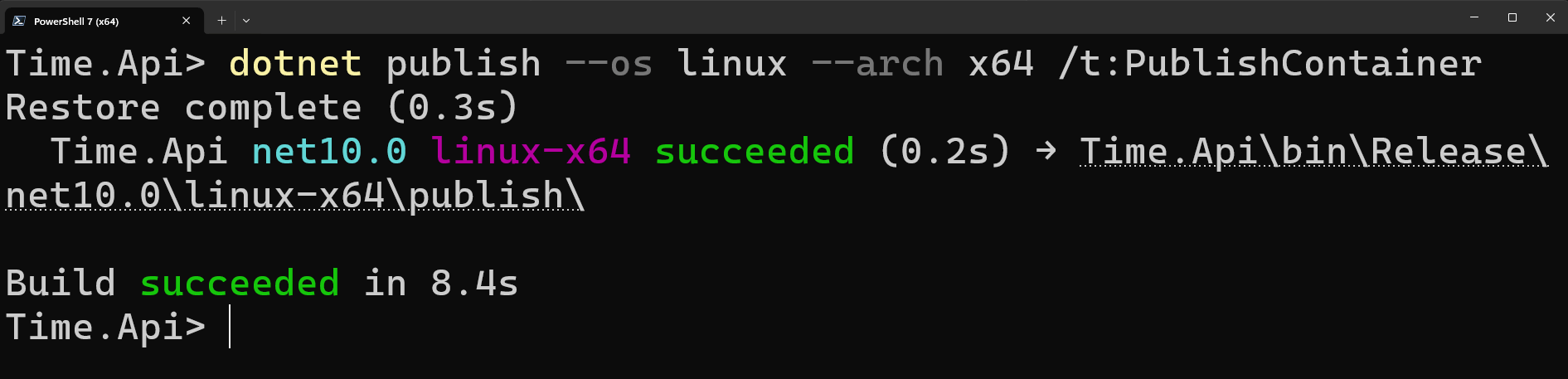
Run dotnet publish --os linux --arch x64 /t:PublishContainer and the SDK builds the app, picks a base image, and loads it into Docker.
You customize the image through MSBuild properties in the .csproj.
Developers report that over 40% of committed code is now AI-assisted, yet they still spend about 25% of their week on toil. Sonar's new developer survey shows AI didn't eliminate work; it shifted it into reviewing, fixing, and verifying code that looks correct but isn't. Download the report to understand why your workload feels the same, just harder to reason about. (No form fill required.)
Webinar: How to Build Faster with AI Agents Learn how full-stack developers boost productivity by 50% with AI agents that automate layout, styling, and component generation through RAG and LLM pipelines. See how orchestration and spec-driven workflows keep you in control of quality and consistency. Check it out
Containers have become the standard for deploying modern applications. But if you've ever written a Dockerfile, you know it can be tedious. You need to understand multi-stage builds, pick the right base images, configure the right ports, and remember to copy files in the correct order.
What if I told you that you don't need a Dockerfile at all?
Since .NET 7, the SDK has built-in support for publishing your application directly to a container image.
You can do this with a single dotnet publish command.
In this week's newsletter, we'll explore:
- Why Dockerfile-less publishing matters
- How to enable container publishing in your project
- Customizing the container image
- Publishing to container registries
- How I'm using this to deploy to a VPS
The Traditional Approach: Writing a Dockerfile
Before we look at the SDK approach, let's see what we're replacing.
A typical multi-stage Dockerfile for a .NET application looks like this:
FROM mcr.microsoft.com/dotnet/aspnet:10.0 AS base
WORKDIR /app
EXPOSE 8080
EXPOSE 8081

FROM mcr.microsoft.com/dotnet/sdk:10.0 AS build
ARG BUILD_CONFIGURATION=Release
WORKDIR /src
COPY ["src/MyApi/MyApi.csproj", "src/MyApi/"]
RUN dotnet restore "src/MyApi/MyApi.csproj"

COPY . .
WORKDIR "/src/src/MyApi"
RUN dotnet build "MyApi.csproj" -c $BUILD_CONFIGURATION  -o /app/build

FROM build AS publish
ARG BUILD_CONFIGURATION=Release
RUN dotnet publish "MyApi.csproj" -c $BUILD_CONFIGURATION -o /app/publish

FROM base AS final
WORKDIR /app
COPY --from=publish /app/publish .
ENTRYPOINT ["dotnet", "MyApi.dll"]
This works, but there's a learning curve and maintenance overhead:
- Maintenance burden: You need to update base image tags manually
- Layer caching: Getting the COPY order wrong kills your build cache
- Duplication: Every project needs a similar Dockerfile
- Context switching: You're writing Docker DSL, not .NET code
The .NET SDK approach eliminates all of this.
Enabling Container Publishing
If you're running on .NET 10, you don't need to do anything special to enable container publishing. This will work for ASP.NET Core apps, worker services, and console apps.
You can publish directly to a container image:
dotnet publish --os linux --arch x64 /t:PublishContainer
That's it. The .NET SDK will:
- Build your application
- Select the appropriate base image
- Create a container image with your published output
- Load it into your local OCI-compliant daemon
The most popular option is Docker, but it also works with Podman.
Customizing the Container Image
The SDK provides sensible defaults, but you'll often want to customize the image. For a more comprehensive list of options, see the official docs.
I'll cover the most common customizations here.
Setting the Image Name and Tag
The ContainerRepository property sets the image name (repository).
The ContainerImageTags property sets one or more tags (separated by semicolons).
If you want a single tag, you can use ContainerImageTag instead.
<PropertyGroup>
  <ContainerRepository>ghcr.io/USERNAME/REPOSITORY</ContainerRepository>
  <ContainerImageTags>1.0.0;latest</ContainerImageTags>
</PropertyGroup>
From .NET 8 and onwards, when a tag isn't provided the default is latest.
Choosing a Different Base Image
By default, the SDK uses the following base images:
mcr.microsoft.com/dotnet/runtime-depsfor self-contained appsmcr.microsoft.com/dotnet/aspnetimage for ASP.NET Core appsmcr.microsoft.com/dotnet/runtimefor other cases
You can switch to a smaller or different image:
<PropertyGroup>
  <!-- Use the Alpine-based image for smaller size -->
  <ContainerBaseImage>mcr.microsoft.com/dotnet/aspnet:10.0-alpine</ContainerBaseImage>
</PropertyGroup>
You could also do this by setting ContainerFamily to alpine, and letting the rest be inferred.
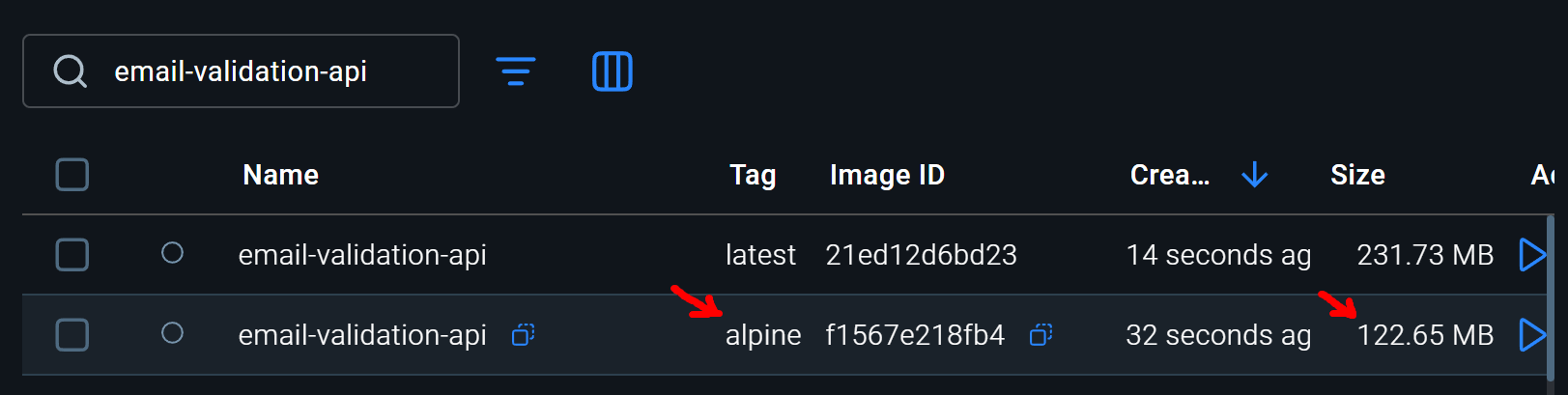
Here's the size difference between the default and Alpine images for an ASP.NET Core app:
| Base Image                                  | Size (MB) |
| ------------------------------------------- | --------- |
| mcr.microsoft.com/dotnet/aspnet:10.0        | 231.73    |
| mcr.microsoft.com/dotnet/aspnet:10.0-alpine | 122.65    |
You can see a significant size reduction by switching to alpine.
Configuring Ports
For web applications, the default exposed ports are 8080 and 8081 for HTTP and HTTPS.
These are inferred from ASP.NET Core environment variables (ASPNETCORE_URLS, ASPNETCORE_HTTP_PORT, ASPNETCORE_HTTPS_PORT).
The Type attribute can be tcp or udp.
<ItemGroup>
  <ContainerPort Include="8080" Type="tcp" />
  <ContainerPort Include="8081" Type="tcp" />
</ItemGroup>
Publishing to a Container Registry
Publishing locally is useful for development, but you'll want to push to a registry for deployment. You can specify the target registry during publishing.
Here's an example publishing to GitHub Container Registry:
dotnet publish --os linux --arch x64 /t:PublishContainer /p:ContainerRegistry=ghcr.io
Authentication: The SDK uses your local Docker credentials.
Make sure you've logged in with docker login before publishing to a remote registry.
However, I don't use the above approach. I prefer using docker CLI for the publishing step, as it gives me more control over authentication and tagging.
CI/CD Integration
Here's what I'm doing in my GitHub Actions workflow to build and push my .NET app container. I left out the boring bits of seting up the .NET environment and checking out code.
This will build the container image, tag it, and push it to GitHub Container Registry:
- name: Publish
  run: dotnet publish "${{ env.WORKING_DIRECTORY }}" --configuration ${{ env.CONFIGURATION }} --os linux -t:PublishContainer
# Tag the build for later steps
- name: Log in to ghcr.io
  run: echo "${{ env.DOCKER_PASSWORD }}" | docker login ghcr.io -u "${{ env.DOCKER_USERNAME }}" --password-stdin
- name: Tag Docker image
  run:
    docker tag ${{ env.IMAGE_NAME }}:${{ github.sha }} ghcr.io/${{ env.DOCKER_USERNAME }}/${{ env.IMAGE_NAME }}:${{ github.sha }} |
    docker tag ${{ env.IMAGE_NAME }}:latest ghcr.io/${{ env.DOCKER_USERNAME }}/${{ env.IMAGE_NAME }}:latest
- name: Push Docker image
  run:
    docker push ghcr.io/${{ env.DOCKER_USERNAME }}/${{ env.IMAGE_NAME }}:${{ github.sha }} |
    docker push ghcr.io/${{ env.DOCKER_USERNAME }}/${{ env.IMAGE_NAME }}:latest
Once my images are up in the registry, I can deploy them to my VPS.
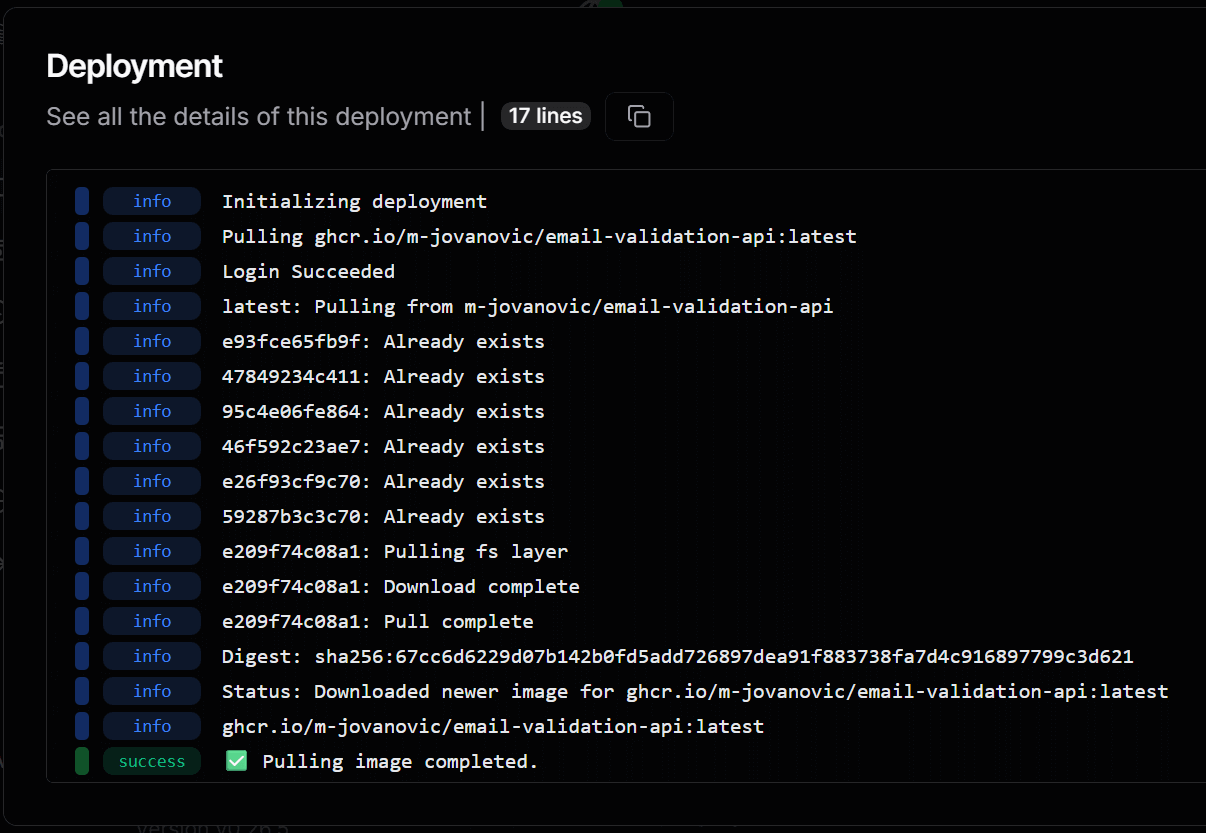
I'm using Dokploy (a simple but powerful deployment tool for Docker apps) to pull the latest image and restart my service.
deploy:
  runs-on: ubuntu-latest
  needs: build-and-publish
  steps:
    - name: Trigger deployment
      run: |
        curl -X POST ${{ env.DEPLOYMENT_TRIGGER_URL }} \
          -H 'accept: application/json' \
          -H 'Content-Type: application/json' \
          -H 'x-api-key: ${{ env.DEPLOYMENT_TRIGGER_API_KEY }}' \
          -d '{
            "applicationId": "${{ env.DEPLOYMENT_TRIGGER_APP_ID }}"
          }'
This kicks off a deployment on my VPS, pulling the latest image and restarting the container.
By the way, I'm running my VPS on Hetzner Cloud - highly recommended if you're looking for affordable and reliable VPS hosting.
When You Still Need a Dockerfile
The SDK container support is powerful, but it doesn't cover every scenario.
You'll still need a Dockerfile when:
- Installing system dependencies: If your app needs native libraries (like
libgdiplusfor image processing) - Complex multi-stage builds: When you need to run custom build steps
- Non-.NET components: If your container needs additional services or tools
For most web APIs and background services, the SDK approach is sufficient.
Summary
The .NET SDK's built-in container support removes the friction of containerization.
You get:
- No Dockerfile to maintain - one less file to worry about
- Automatic base image selection - always uses the right image for your framework version
- MSBuild integration - configure everything in your
.csproj - CI/CD friendly - works anywhere
dotnetruns
The days of copy-pasting Dockerfiles between projects are over.
Just enable the feature, customize what you need, and publish.
Thanks for reading.
And stay awesome!
Frequently Asked Questions
Can you containerize a .NET app without a Dockerfile?
Yes. Since .NET 7, the SDK can publish an application directly to a container image with a single dotnet publish command using the PublishContainer target. It builds the app, selects an appropriate base image, and loads the image into Docker or Podman.
How do you publish a .NET app to a container image?
Run dotnet publish --os linux --arch x64 /t:PublishContainer. On .NET 10 nothing extra needs to be enabled, and it works for ASP.NET Core apps, worker services, and console apps. You customize the image name, tags, base image, and ports through MSBuild properties in the csproj.
How do you change the base image for SDK container publishing?
Set ContainerBaseImage in the csproj, for example mcr.microsoft.com/dotnet/aspnet:10.0-alpine, or set ContainerFamily to alpine and let the rest be inferred. Switching an ASP.NET Core app to the Alpine image cut the size from 231.73 MB to 122.65 MB in the demo.
When do you still need a Dockerfile for .NET?
When you install system dependencies like native libraries (libgdiplus for image processing), run custom steps in complex multi-stage builds, or bundle non-.NET components in the container. For most web APIs and background services, SDK container publishing is sufficient.
How do you push an SDK-published container image to a registry?
Either pass ContainerRegistry during publish (for example /p:ContainerRegistry=ghcr.io), which reuses your local Docker credentials, or publish locally and use the Docker CLI to tag and push, which gives more control over authentication and tagging. In CI, GitHub Actions can publish, tag, and push to GitHub Container Registry.